Bluetooth Headphones Cutting Out on Windows 11: How to Fix It
Updated on September 2, 2026
Most of the time there’s nothing wrong with the headphones themselves. Audio cuts out, stutters, or drops in quality mid-use, and the instinct is to blame a weak battery or a dying unit. But the most common cause of this cutout on Windows 11 lives on the computer, not in the headphones, and it’s fixed with a setting, not a purchase.
Before you buy anything, test this
There’s one question that splits the cutout cases in half right away: does it only happen when you join a call or turn on the microphone? If yes, skip straight to the next section, because the issue has a name and it isn’t the headphones. If the cutout happens even just listening to music alone, with no microphone involved, work through this list first:
- Test the headphones on another device (phone, another laptop). If they work fine everywhere except this PC, the problem is the computer, not the headphones.
- Turn off power management on the adapter. Open Device Manager, find the Bluetooth adapter, go to Properties, and on the Power Management tab uncheck “Allow the computer to turn off this device to save power.” This is a documented and recurring cause of dropped connections, and Windows leaves that box checked by default.
- Update the driver straight from the manufacturer, not through Windows Update. Go to the motherboard, laptop, or chipset maker’s site (Intel, Realtek, or Broadcom, depending on the machine) and grab the latest version. Windows Update sometimes reinstalls a generic driver over one that was already working, which causes a regression too.
- Cut down how many Bluetooth devices stay paired and active at once. A mouse, keyboard, and headphones all competing for the same radio drags down the most sensitive link, which is audio.
- Check whether it gets worse under heavy Wi-Fi use, like a big download running. Classic Bluetooth and 2.4 GHz Wi-Fi share the same frequency band, and heavy traffic on one can collide with packets from the other.
If none of that fixes it, especially on a desktop with generic motherboard Bluetooth or an older laptop, the issue is likely hardware, and an external adapter is worth it (more on that below).
Why the audio gets worse the moment you start talking
This is the most common cause of all, and nothing in Windows warns you about it. Classic Bluetooth carries audio two ways: the A2DP profile, stereo and high quality, output-only, and the HFP/HSP profile, hands-free, with much lower bandwidth because it was built for phone-call voice, not music. While you’re just listening, Windows uses A2DP. The instant the headphones’ microphone turns on, in a Teams call, Zoom, or any recording, the system switches to HFP so it can pick up your voice, and the quality of what you hear drops right along with it. It’s a limitation of the standard, not an isolated driver bug, which is why reinstalling a driver won’t fix this specific case.
Two practical workarounds:
- Disable the headphones’ microphone when you’re not on a call. Go to Sound settings, the Recording tab, right-click the headphones, and disable them. With no active microphone, Windows never has a reason to switch profiles.
- Disable the “Handsfree Telephony” service. In Control Panel, under Devices and Printers, open the headphones’ properties, go to the Services tab, and uncheck “Handsfree Telephony.” That forces Windows to keep the device in stereo A2DP at all times, without ever offering the voice profile, which works well if you only use the headphones for listening and take calls through a different microphone.
Neither one is a real fix for anyone who needs good audio and an active microphone through the same headphones at the same time: only the newer Bluetooth LE Audio standard, with the LC3 codec, actually solves that, and it still depends on both the headphones and the PC’s chipset supporting it.
The headphones are also connected to your phone
This is the cause that slips past almost everyone, because nothing in Windows hints at it. Headphones with multipoint keep two connections alive at once, usually the phone and the PC, and they decide on their own which one owns the audio. A notification lands on the phone, or a music app twitches in the background, and the headphones grab the channel for a few seconds. On the PC side that shows up as a short, random cutout, the kind that refuses to happen while you’re trying to reproduce it.
The test takes half an hour: turn Bluetooth off on the phone and use the PC normally. If the cutouts stop, it was multipoint contention, and no driver change or new adapter was ever going to fix it.
Owners who hit this tend to settle on one of three fixes, in order of convenience: turn multipoint off in the headphone maker’s app (Sony, JBL, and Bose all expose that switch), forget the phone pairing during work hours, or leave the pairing in place and just turn the phone’s Bluetooth off while working. Worth noting that the recurring complaint in forums isn’t multipoint failing, it’s multipoint working too well: the headphones default to obeying the phone even when the PC is the one playing.
The cutouts started after a Windows update
If the headphones worked and started cutting out without you changing anything, the suspect list changes. Windows updates swap Bluetooth and audio drivers silently, and users regularly report the cutouts showing up the day after an update, on a machine that had been stable for months.
In that case the fix runs opposite to what the first checklist suggests, which is to update the driver:
- Roll the driver back. In Device Manager, open the Bluetooth adapter’s properties, go to the Driver tab, and use “Roll Back Driver.” The option is only available when Windows kept the previous version, which is exactly the situation right after an update.
- If that button is greyed out, uninstall the device and reboot. Windows reinstalls the driver on startup, and that clean reinstall also clears a corrupted pairing, which produces the same symptom.
- Turn off audio enhancements. In Settings, System, Sound, open the headphones’ Properties and switch off “Audio enhancements.” It’s extra processing Windows applies to the output, and on a weaker machine it stutters along with the audio. Ten seconds to try, and reversible.
If none of that holds, check whether the update also touched the network adapter driver. Wi-Fi and Bluetooth usually share the same module in a laptop, and a new network driver can take the Bluetooth audio down without the internet connection showing any sign of trouble.
When a USB Bluetooth adapter is worth buying
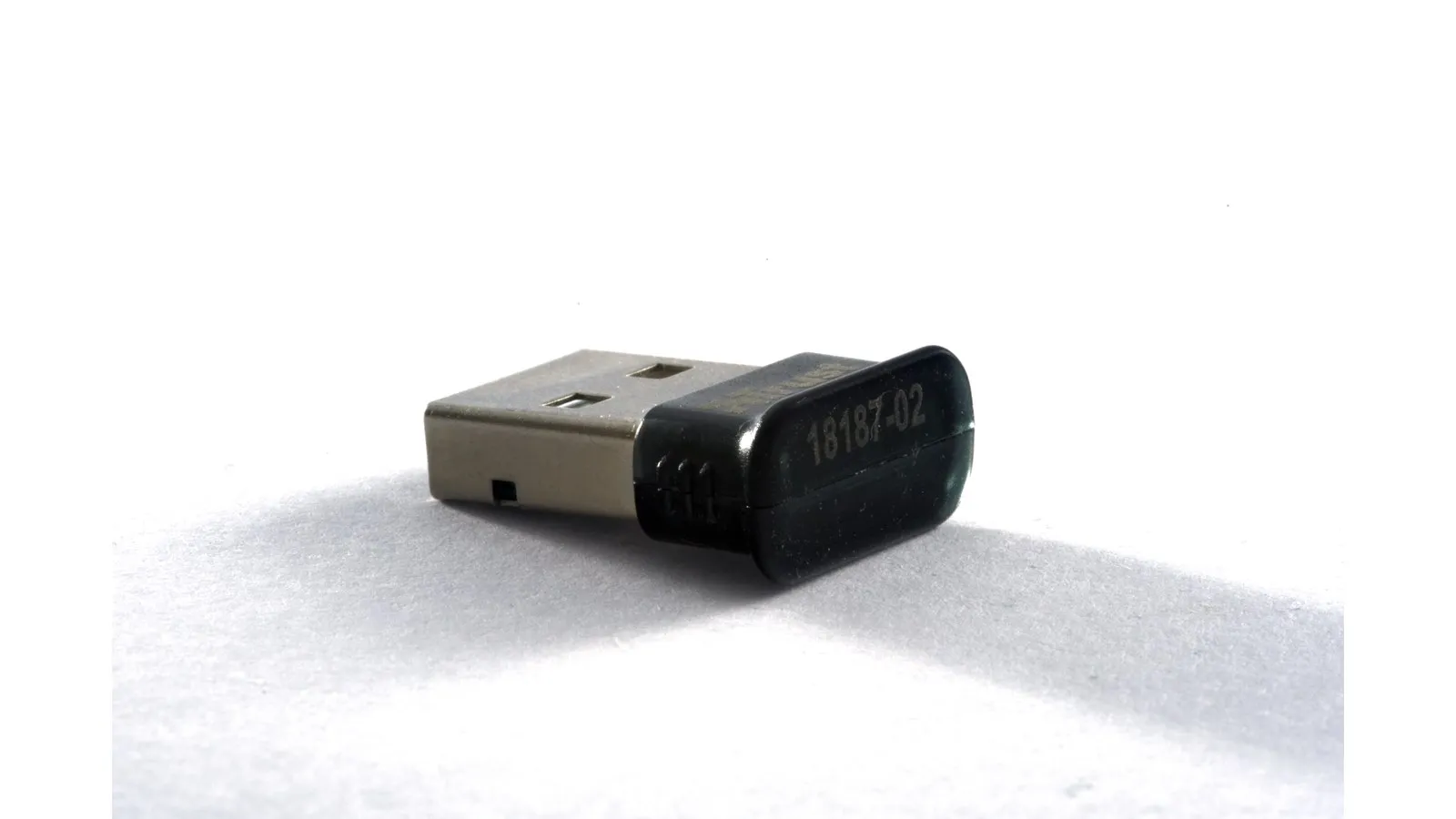
If you’ve already run through the first checklist and the cutout still happens outside of calls, your PC’s built-in Bluetooth radio is probably the bottleneck. That’s common on desktops that never had factory Bluetooth and got a generic one bolted onto the motherboard, and on entry-level laptops with older chipsets. In those cases, an external USB Bluetooth adapter with a current chipset usually fixes it, since it has better interference immunity than a cheap integrated radio.
One thing worth knowing before you buy: a USB adapter sitting right next to an active USB 3.0 port can pick up radio noise from the port itself, which drowns out the weaker Bluetooth signal. If the cutout continues after swapping the adapter, try a different port or a short extension cable to move the dongle away from the case.
Prices vary a lot with sales and seller. Check the current price before buying.
Quick comparison
| Model | Best for | Price range |
|---|---|---|
| TP-Link UB500 | Fixing it at the lowest cost | $10 – $16 |
| ASUS USB-BT500 | Anyone who wants branded support and a driver fallback | $15 – $25 |
For most people, the TP-Link UB500 gets the job done: plug and play, no manual driver, and a low price. The ASUS USB-BT500 only earns its higher price if you’ve already had a bad experience with an unbranded dongle and would rather pay for official support.
If the cutout only shows up during calls and the cause is the A2DP-to-HFP profile switch, the problem shifts, and it’s worth checking the headset for video calls guide, which deals directly with mic-on use. If fixing the cutout makes you realize the headphones themselves are just old or the battery no longer lasts the day, the cost-to-value comparison lives in the budget Bluetooth headphones guide. And anyone with a laptop that only has USB-C ports and needs a free USB-A slot for the adapter without giving up another peripheral will find the options in the USB-C hub guide.
Our recommendations
TP-Link UB500 (Nano Bluetooth 5.4 USB Adapter)
The default pick: plug and play on Windows 11, nano-sized, and connects up to 7 devices at once.
Pros
- No manual driver needed on Windows 11, 10, or 8.1
- Nano form factor, barely sticks out of the USB port
- Supports up to 7 Bluetooth devices connected at the same time
Cons
- Built-in antenna has shorter range than the external-antenna version (UB500 Plus)
- The same model name shows up listed as Bluetooth 5.0, 5.3, and 5.4 across listings: check the exact spec on the listing before buying
$10 – $16
Check price on AmazonASUS USB-BT500
Asus's take on the same idea, for anyone who already had a bad experience with an unbranded dongle: Bluetooth 5.0 with backward compatibility to 2.1.
Pros
- Branded support and a dedicated driver on the official site if plug and play fails
- Ultra-compact design, doesn't block the USB port next to it
- Backward compatible with 2.1/3.x/4.x, so it won't drop an older Bluetooth peripheral
Cons
- Costs more than the TP-Link for the same function
- ASUS recommends disabling the PC's built-in Bluetooth in Device Manager before installing it, a step the TP-Link doesn't require
$15 – $25
Check price on AmazonPrices are reference ranges and change often, so check the current price on Amazon before buying.
Frequently asked questions
Do I need to buy an adapter if my laptop already has Bluetooth built in?
Only if the troubleshooting steps don't fix it. Most cutouts come down to power management, an outdated driver, or the mic-triggered profile switch, and none of those need new hardware. A USB adapter earns its place when the PC's own Bluetooth radio is weak or old, which is more common on desktops with generic motherboard Bluetooth and on entry-level laptops.
Does this also happen on Windows 10?
Yes. The A2DP-to-HFP profile switch when the microphone turns on is a limitation of classic Bluetooth, not a Windows 11-only bug, and it affects both versions. What changes between them is mostly where the relevant settings menus live.
Will a USB Bluetooth adapter conflict with the laptop's built-in Bluetooth?
It can, with both radios competing over the same pairing. ASUS, for example, recommends disabling the internal Bluetooth in Device Manager before using its USB-BT500 adapter. That way only one radio is active at a time, and there's no ambiguity about which one is handling the connection.
It only cuts out on Teams or Google Meet calls. Is that the same problem?
Same cause, the A2DP-to-HFP switch that fires when the headset mic turns on. The practical way around it is to pick a different microphone inside the app itself: in the audio settings of Teams, Meet, or Zoom, leave the output on the headphones and set the input to the laptop's built-in mic. The app stops requesting the headset mic, Windows never switches profiles, and the audio stays in stereo.
The audio only cuts out in one earbud. Is that the same issue?
No, and the symptom is a useful tell. On true wireless earbuds, one side receives the signal and relays it to the other, so a dropout in a single ear is usually a failure in that relay rather than in the link to the PC. Cleaning the case contacts, charging both sides, and re-pairing from scratch fixes most of these. A problem with the PC link drops both sides at once.