USB-C Hubs for Laptops: How to Choose the Right One
Updated on October 27, 2026
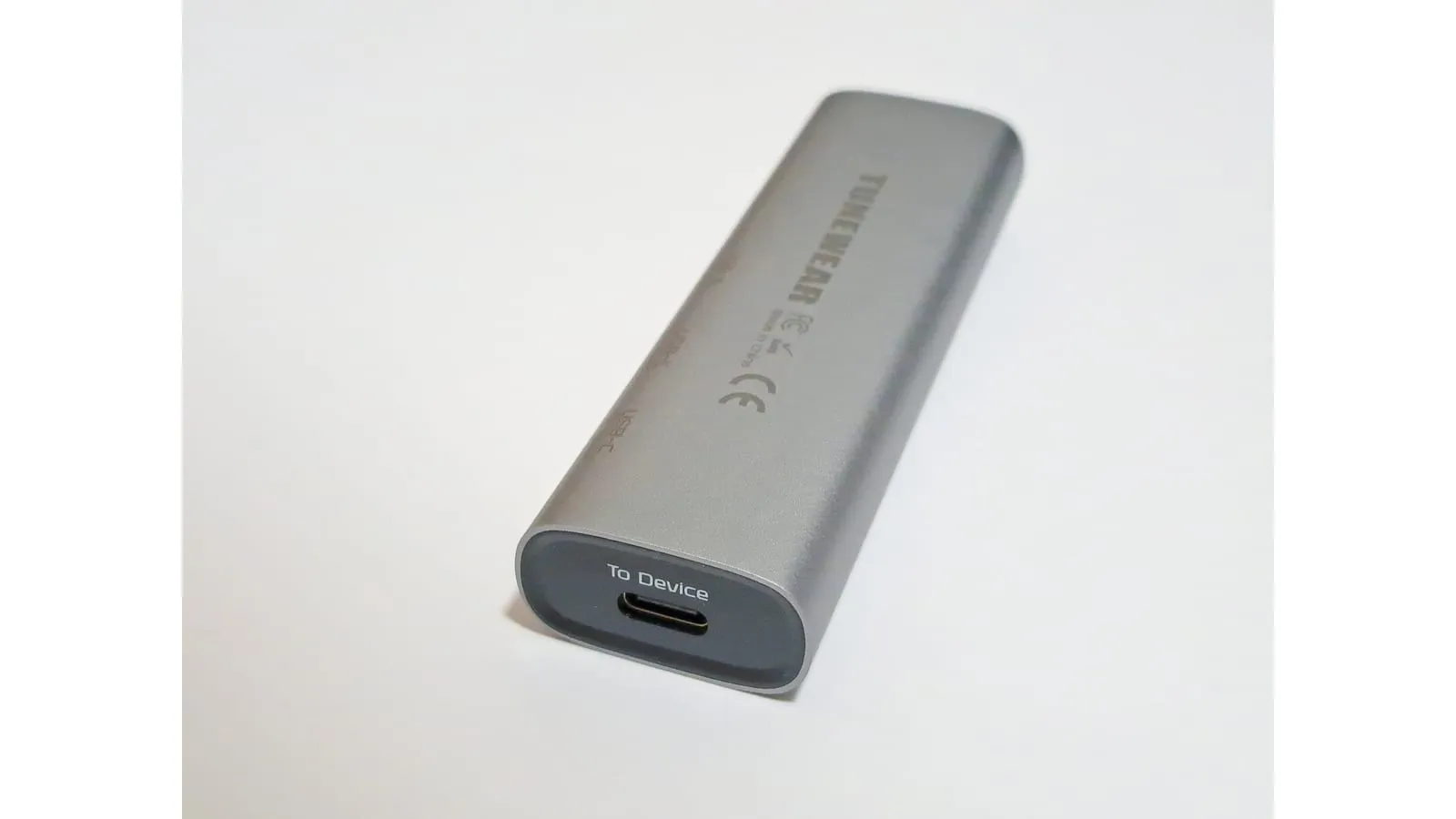
Most thin laptops now ship with two or three USB-C ports and nothing else. A good hub fixes that without becoming a bottleneck or one more cable you’re afraid to lose.
What to check before buying
- Which ports you actually use: HDMI for a monitor, USB-A for older peripherals, an SD reader if you shoot photos. List what you plug in today rather than buying the highest port count.
- Pass-through power delivery: essential if the hub lives on your desk all day. Anything under 85W will trickle-charge a working laptop.
- Supported video resolution and refresh rate: “4K” alone means nothing, since 4K at 30Hz feels sluggish and is common on cheap hubs.
- Build material: aluminium bodies run cooler than plastic ones, and hubs throttle when they get hot.
“Supports 4K” almost never means 4K at 60Hz
This is the detail that causes the most regret, and it lives in the fine print. A USB-C connector has four high-speed lanes, and DisplayPort Alt Mode splits them between video and data. A small, cheap hub typically assigns two lanes to video and leaves two for its USB ports, and two lanes are enough for 4K at 30Hz, not 60Hz. For watching video that changes nothing. For working it changes a lot: at 30Hz the pointer smears across the screen and scrolling looks like stutter, and it is the kind of irritation people feel without being able to name it.
So when comparing hubs, ignore “4K supported” in the listing title and look for 4K at 60Hz in the specifications. If you already own a hub and suspect it, the test is simple: connect the laptop straight to the monitor with a video-capable USB-C cable. If you get 60Hz without the hub and 30Hz with it, the hub is the bottleneck, not the monitor or the laptop.
The three problems that show up in daily use
The first is intermittent disconnects, the category’s most common complaint. The usual causes are not a faulty hub: a long or poor-quality cable between laptop and hub, an extension in the middle, and not enough power when a hungry peripheral like a bus-powered drive or a webcam shares the same budget. Plugging the charger into the hub before anything else, and putting low-draw devices on the USB 2.0 ports, resolves most cases.
The second is heat. An aluminium body runs cooler than plastic because the case acts as a heatsink, and a hub buried under a laptop with no airflow is a reliable way to get instability a few hours into a session with an external display.
The third is power. Pass-through always delivers less to the laptop than goes into the hub, because the hub keeps some for itself. In practice, if your laptop wants 65W, a 65W adapter plugged into the hub will leave it slowly losing charge under load. That is the argument for buying an adapter with headroom rather than the minimum figure the manufacturer quotes.
Hub prices vary widely by port count and brand, so compare the specific model’s current price before deciding.
Quick comparison
| Model | Best for | Price range |
|---|---|---|
| Anker 341 (7-in-1) | Travel, everyday use | $30 – $45 |
| UGREEN Revodok Pro 109 | Home office, video calls | $45 – $70 |
| Anker 555 (8-in-1) | One 4K monitor at 60Hz, wired network | $55 – $80 |
If you move between places, the Anker 341 is small enough that you’ll actually carry it. If you have a fixed desk and spend the day on calls, the Ethernet port on the UGREEN Revodok is the upgrade you’ll notice most: wired connections simply don’t drop the way Wi-Fi does.
A hub is usually the first piece of a desk that keeps growing: next comes the stand that lifts the screen to eye level and, if pass-through can’t feed everything you plug in, a multi-port GaN charger. And if Ethernet was on your list because of video calls, the thing that improves those calls most isn’t the network, it’s the headset microphone.
Our recommendations
Anker 341 USB-C Hub (7-in-1)
The right hub for most people: HDMI, USB-A, SD cards and pass-through charging in something the size of a candy bar.
Pros
- Pass-through charging, up to 85W to the laptop from a 100W charger, keeps it topped up on one port
- 4K HDMI output for a single external monitor
- Small enough to leave permanently in a laptop sleeve
Cons
- No Ethernet port
- HDMI caps at 30Hz for 4K, which is fine for work but not video
$30 – $45
Check price on AmazonUGREEN Revodok Pro 109 (9-in-1)
The work-from-home pick: adds Gigabit Ethernet for calls that can't afford to drop.
Pros
- Gigabit Ethernet is far more stable than Wi-Fi on video calls
- Pass-through charging plus a genuinely useful port spread
- Metal body that spreads heat instead of trapping it
Cons
- Bigger and heavier than travel hubs
- Costs more than most people need to spend
$45 – $70
Check price on AmazonAnker 555 USB-C Hub (8-in-1)
For a fixed desk with one big monitor: 4K at 60Hz over HDMI, where most cheaper hubs stop at 30Hz, plus Ethernet.
Pros
- HDMI runs 4K at 60Hz, so the cursor and scrolling stay smooth
- Gigabit Ethernet plus pass-through charging
- Built to sit on a desk permanently
Cons
- A single HDMI port: two monitors need a DisplayLink or Thunderbolt dock instead
- Costs more than the 341 if your monitor is 1080p and 30Hz would never show
$55 – $80
Check price on AmazonPrices are reference ranges and change often, so check the current price on Amazon before buying.
Frequently asked questions
Will a hub slow down my laptop or monitor?
It can cap your monitor's resolution or refresh rate if the hub's video spec is lower than your display's. A hub that lists '4K at 30Hz' will look fine for documents and awful for video or a mouse cursor. Check the spec against your monitor before buying.
Do I need pass-through charging?
If your laptop charges over USB-C and the hub stays plugged in all day, yes: otherwise the hub occupies the port your charger needs. Look for at least 85W pass-through, since hubs lose 10–15W to overhead.
Why won't my MacBook Air drive two monitors through the hub?
That's a limitation of the M1 and M2 Air chips, not the hub. They support one external display natively. Hubs that advertise dual monitors on those machines rely on DisplayLink software drivers, which work but cost some CPU.
Read next
Peripherals
Does a vertical mouse fix wrist pain?
Peripherals
Is an ink tank printer worth it at home?

Peripherals