1080p or 1440p at 27 inches: which monitor for work?
Published on August 31, 2026
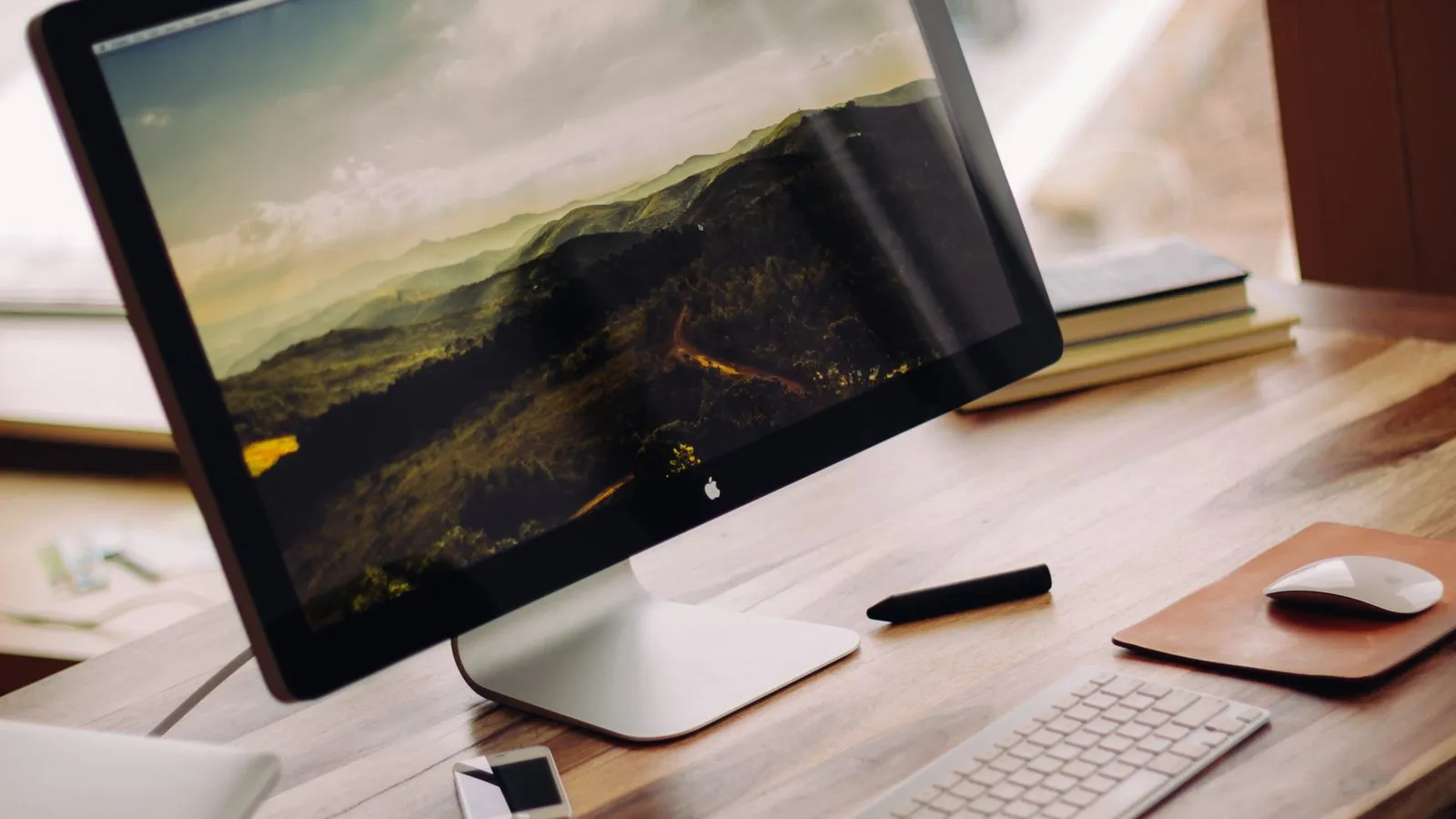
The argument usually starts in the wrong place, with screen size. What decides reading comfort is density: how many pixels sit in each inch. And that number moves a lot with size, even when the resolution stays put.
In round figures: 24 inches at 1080p works out to about 92 pixels per inch. Twenty-seven inches at the same resolution drops to roughly 82, because the same pixels got stretched over a bigger area. Twenty-seven inches at 1440p climbs to about 109.
So a 27-inch 1080p screen is not a bigger version of the 24-inch one. It is a less sharp version.
Where that actually bites
In video and games it barely registers: there is motion and detail enough to hide it. The problem shows up in text, which is what most people stare at for eight hours a day.
People who have switched describe 27-inch 1080p with the same phrase over and over: slightly blurry. Not unreadable, just the kind of discomfort you do not identify on day one and feel by day three. It comes from letter edges, which need spare pixels to stay clean.
The second problem gets mentioned less and matters more practically: space. A 27-inch 1080p screen has exactly the same desktop area as a 24-inch 1080p screen. Everything is larger, nothing extra fits. Anyone expecting to put two windows side by side finds they are still alt-tabbing.
The Windows scaling question
This is the most confusing part, and worth understanding before you buy, because it is why a lot of monitors get returned.
At 27 inches and 1440p, Windows suggests 100%. Plenty of people find text small there, especially coming from 24 inches, and move to 125%. At that setting the usable area goes back to roughly 1080p, but the image is still drawn with more pixels: same text size, sharper edges. That is why 1440p with scaling beats 1080p without it, even when the on-screen result looks equivalent.
What spoils it is older software that ignores the scaling factor and renders blurry. This got much better in Windows 11, but still happens in corporate apps. If your day depends on one of those, test before committing to a scaled setup.
The detail that changes your day more than resolution
Screen height. Cheap monitors almost always ship with a tilt-only stand, and looking down all day taxes your neck long before sharpness bothers you. In threads full of people who have cycled through monitors, the recurring complaint is not the panel, it is the stand: one user reported returning four displays before finding one with a solid, adjustable one.
The cheap way out is checking for VESA holes and using an arm, or solving height separately. It is the same reasoning behind raising a laptop screen to eye level, which is what laptop stands are for.
Quick comparison
| Setup | Density | Best for |
|---|---|---|
| 24-inch 1080p | ~92 ppi | Tight budget, small desk, dual screens |
| 27-inch 1080p | ~82 ppi | Competitive gaming and secondary side panels |
| 27-inch 1440p | ~109 ppi | Text work and windows side by side |
If money is tight, pick 24 inches at 1080p over 27 inches at 1080p. It feels backwards, but you get a sharper image for less money, and what you give up is area, not quality. If you can stretch, 27 inches at 1440p is the purchase that justifies itself within a week.
Two things usually go missing from the budget when someone builds a desk from scratch. The first is how the monitor connects: thin laptops rarely have a spare HDMI port, and the answer is normally a USB-C hub that carries video and charges the machine over one cable. The second is what sits in front of the screen: keyboard and mouse decide eight-hour comfort more than any panel spec, and the criteria are in the wireless mouse buying guide.
Our recommendations
Dell S2725DS
The balance point for desk work: 27 inches with enough density for crisp text, on a stand that actually adjusts.
Pros
- QHD IPS panel at roughly 109 pixels per inch, the range where pixels stop being visible
- Height, tilt, swivel and pivot on the stand, which is rarer at this price than it should be
- Fits two documents side by side without cramping, the real gain over 1080p
Cons
- 1500:1 contrast is fine for work and unremarkable for dark-room video
- No USB-C, so a modern laptop still needs a separate cable or a dock
- Owners report the built-in speakers are usable for calls and little else
$180 – $250
Check price on AmazonDell S2425H
The honest budget pick: at 24 inches, 1080p is still sharp, which is exactly what a 27-inch panel at the same resolution cannot manage.
Pros
- Around 92 pixels per inch, meaningfully denser than a 27-inch 1080p screen
- No Windows scaling required, so no blurry legacy apps to fight
- Cheap enough to buy two and run a dual screen setup
Cons
- Smaller working area, and wide spreadsheets feel it
- Tilt-only stand, so height comes from a monitor arm or a stack of books
- No USB-C, no height adjustment, no DisplayPort
$110 – $150
Check price on AmazonASUS VA27EHF
Makes sense in one specific case: you want a big screen cheap and you play competitively, where refresh rate beats sharpness.
Pros
- The cheapest route to 27 inches on the desk
- 100Hz IPS makes fast games and even mouse movement look smoother
- Good as a secondary side panel for things you monitor rather than read
Cons
- Around 82 pixels per inch, and people who work in text describe the image as slightly blurry
- No scaling setting fixes it: at 100% the working area is the same as any 1080p screen
- Upgrading to 1440p later costs more than starting there would have
$100 – $150
Check price on AmazonPrices are reference ranges and change often, so check the current price on Amazon before buying.
Frequently asked questions
Is text too small on a 27-inch 1440p screen?
At 100% scaling, which is what Windows recommends, some people coming from a 24-inch screen do find it small. The usual fix is 125%: text then measures the same as on a 27-inch 1080p screen, but is drawn with more pixels, so it is sharper. That is the best of both.
Do I need a better graphics card for 1440p?
For work, no. Browsers, spreadsheets and video run on any current integrated graphics. For gaming, yes: 1440p has 78% more pixels than 1080p, and that shows up directly in frame rate.
One 27-inch screen or two 24-inch ones?
It depends what the second window is for. If you compare two documents constantly, two screens win, because each can be full screen. If you want one continuous area for several windows and no bezel down the middle of your view, a 27-inch 1440p panel handles it better.
Read next
Peripherals
Does a vertical mouse fix wrist pain?
Peripherals
Is an ink tank printer worth it at home?
Peripherals